Ingame settings
Overview
Settings framework can be used by downstream mods to define custom gameplay settings. The framework automatically handles:
- ingame management UI
- persistence
- predefined presets and defaults
- replication
- clipboard import/export functionality
Every setting must belong to a setting group. Groups are used to organize settings together that relate to the same domain (mechanics, difficulty, HUD, and so on). Every setting must be assigned to exactly one group.
Specific settings are identified, stored and retrieved based on unique enum values (JWK_EGameSetting). When serializing, enum names are converted to camel case and used as keys, for example: SYSTEM_MAX_ITEMS will become systemMaxItems.
Data types
Every setting must have a strictly defined data type. Currently supported types are:
| Name | Preset config class | Retrieval methods | Compatible widgets |
|---|---|---|---|
| Boolean | JWK_BooleanGameSettingsPresetValue | container.GetBool() | CHECKBOX |
| Numeric | JWK_NumericGameSettingsPresetValue | container.GetFloat() container.GetInt() |
SLIDER MONEY_SLIDER SPINBOX |
| Enum | JWK_EnumGameSettingsPresetValue | container.GetInt() | SPINBOX |
Runtime changes
Settings framework allows settings to be adjustable at runtime (when the campaign is already in progress) or only at the setup screen. This is useful for settings that have huge impact on gameplay logic, or their change can’t be logically handled at runtime.
The framework does not support settings that require a reboot to take effect (i.e. are only evaluated when the server starts, but can be changed on an existing save) - changes must be gracefully handled at any moment during the gameplay, or the setting has to be configurable only at the campaign launch.
Migrations
If the player installs a new addon during an existing campaign, the framework will automatically assume default values for the newly introduced settings from their selected settings preset. If the campaign is using customized settings, the value from the default preset will be assumed (unless modded, the default preset is Normal).
If an addon introducing new settings is removed and the settings were customized, the framework will log warnings during the next load cycle about unknown setting values which will be ignored. If the player reinstalls the addon afterwards, they will have to customize their settings again.
Replication
All setting values are automatically replicated to all clients. Do not use the framework to store settings that should be secret or unkown to the players, even if their ability to inspect the settings UI is disabled.
Creating custom settings
For the purpose of this documentation, we will assume an example that adds two new settings, one being a slider (numeric data type), and the other being a selection between low, medium and high (enum data type).
The custom enum is defined as follows:
enum TAG_EMyEnum
{
    LOW,
    MEDIUM,
    HIGH
}
Caution
Enum settings are serialized with their numerical values. It means that changing enum value names (i.e. from LOW, MEDIUM, HIGH to EASY, NORMAL, HARD) is backwards compatible, but adding new values in-between is not handled correctly. This may cause issues if multiple addons modify the same enum (numerical values will shift depending on the addons load order).
Adding a new setting group
Note
Adding custom setting group is not mandatory, but it is a good practice to organize your settings within a group dedicated to your mod, rather than to add your settings to existing groups in FF - it makes the navigation easier for players. For readability, your group should have the same name as your addon.
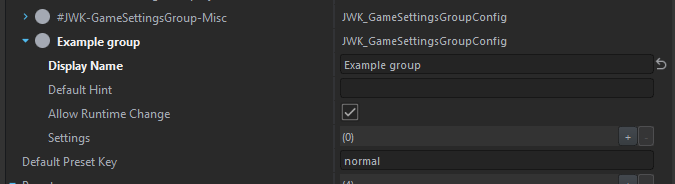
Override GameSettings.conf in your addon and add a new entry in the Groups attribute (JWK_GameSettingsGroupConfig).
You can uncheck Allow Runtime Change to prevent all settings in this group from being changeable at runtime. This will ignore the state of this attribute on specific settings.
Registering new settings
Extend JWK_EGameSetting enum in script and add a unique entry for each of your settings:
modded enum JWK_EGameSetting
{
    TAG_MY_CUSTOM_SETTING_ONE, // numeric
    TAG_MY_CUSTOM_SETTING_TWO  // enum TAG_EMyEnum
}
Tip
Always prefix your custom enum values with your scripting tag to avoid collisions with other mods.
Pick your value names wisely, as they are used as identifiers when the settings are persisted. If you change an existing value name, it will be treated as an entirely new setting. Enum numerical values should only be relied on at runtime, as loading different mods (or updates to FF itself) may move your enum values up or down.
Settings configuration
Preset base value
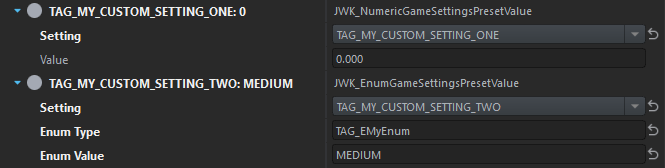
Override BasePreset.conf and add an entry for each of your settings. Remember to use matching config classes, as listed in this table.
In case of enums, you have to fill in Enum Type with the type name of your enum. The Enum Value needs to literally match one of your enum values.
Warning
This step is mandatory, even if you want your setting to default to an implicit value (0 or empty). BasePreset.conf must contain a correct entry for every JWK_EGameSetting.
You can also override default FF presets (i.e. easy or hard) to provide different defaults.
UI configuration
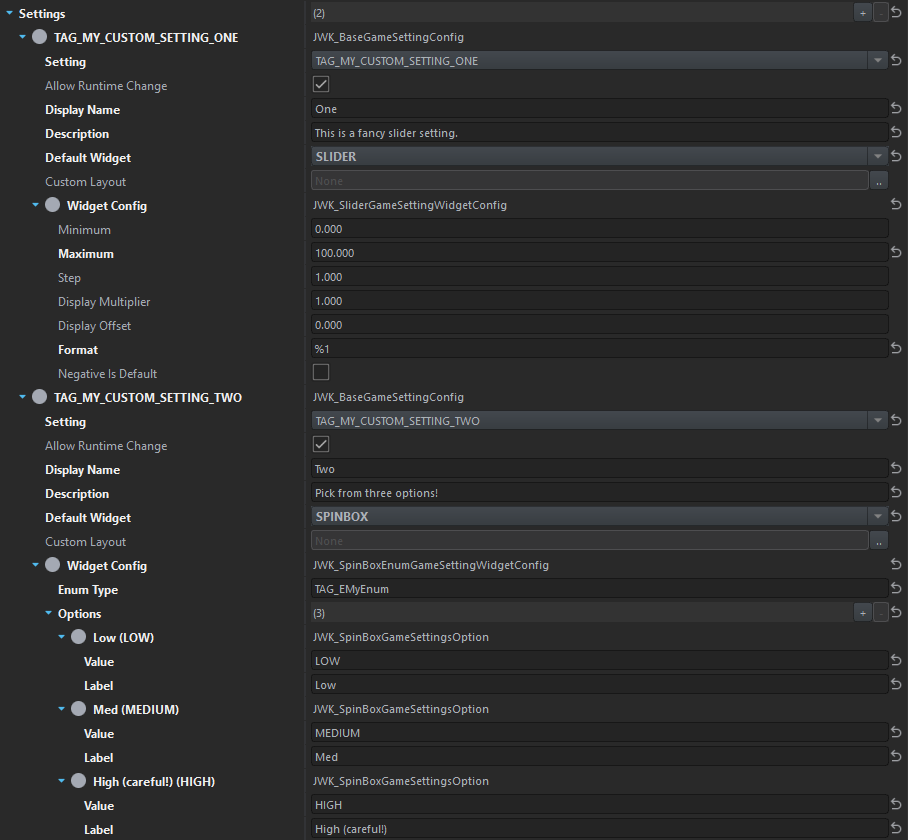
Go to GameSettings.conf and add a new JWK_BaseGameSettingConfig entry in the Settings attribute within your group for each of your settings.
You need to configure the Display name and provide the UI layout to use. You can specify a custom one or choose a built-in one by selecting Default Widget. Some widgets may require a Widget Config object to be functional. This is covered in detail in following sections.
Below is a working configuration for our two example settings:
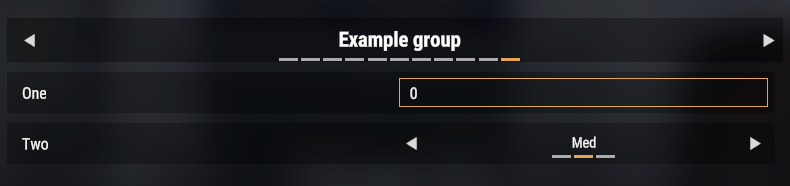
…which should produce following UI ingame:
Default widgets
SLIDER and MONEY_SLIDER
This widget can be only used with numeric settings. It optionally accepts a JWK_SliderGameSettingWidgetConfig which can be used to define the slider range, step and displayed value modifiers.
Tip
By default the slider will display its value as a percentage. If you want to display its value directly, specify %1 as Format.
MONEY_SLIDER has the same functionality as SLIDER, but it will automatically format the value as a monetary value using the ingame currency. When using MONEY_SLIDER, Format should be left empty.
CHECKBOX
This widget can be only used with boolean settings. It does not provide further configuration options and does not expect any Widget Config.
SPINBOX
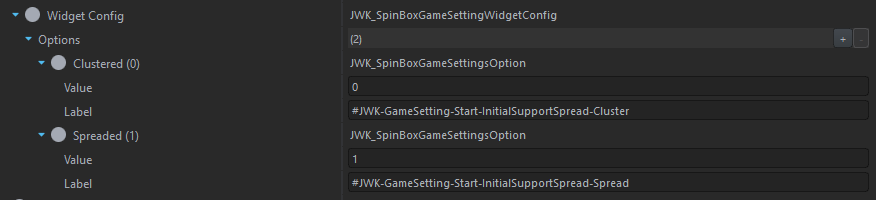
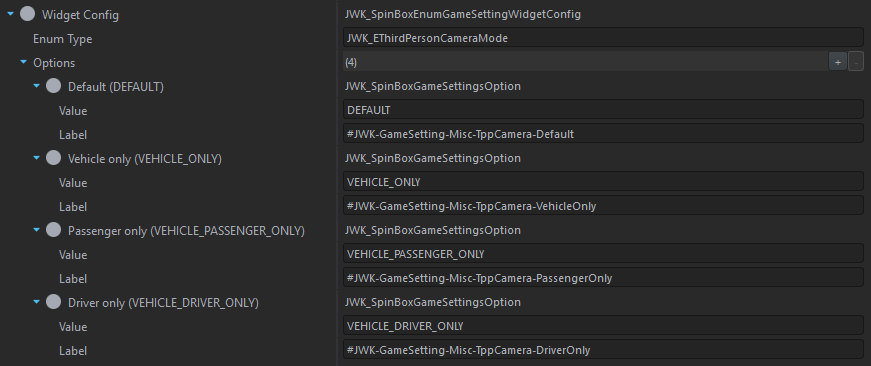
This widget can be used with numerical or enum settings and provides selection from a finite set of values. Widget Config of matching type is required.
When used with a numeric setting, use JWK_SpinBoxGameSettingWidgetConfig.
When used with an enum setting, use JWK_SpinBoxEnumGameSettingWidgetConfig.
Tip
Both variants operate on integer values internally, but enum based spinboxes are preferred as their configuration is more readable, easier to maintain and follow in code.
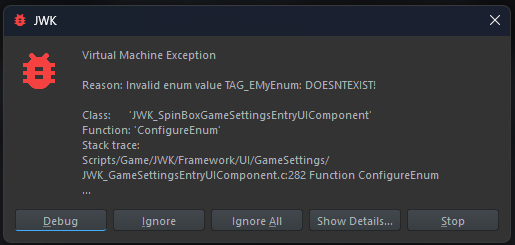
The framework will throw errors if the enum type or its value names are incorrect (i.e. due to renaming), whereas changes to magic numbers and their meanings may slip unnoticed. Example of a failed validation:
HEADING
This is a special case, as headings can be used within your group to further organize a large number of settings visually. They must not be mapped to a setting (Setting must be left UNDEFINED) and do not expect a Widget Config.
Scripting usage
There is a JWK_GameSettingsCache class that acts as a runtime storage for all setting values and is globally available as a singleton. The settings are otherwise carried around in a container that abstracts away implementation details of the framework. Any access to setting values, or retrieval from the container, should be performed within JWK_GameSettingsCache.
As a convention, JWK_GameSettingsCache should have a public member for every setting that is updated inside the Update() method. This member should be then accessed to retrieve the setting value anywhere in the downstream code.
See the example below:
modded class JWK_GameSettingsCache
{
    float m_fTAG_MyCustomSettingOne;
    int m_iTAG_MyCustomSettingTwo;

    // This method is called on both server and clients.
    override void Update(JWK_GameSettingsContainer container)
    {
        super.Update(container);

        m_fTAG_MyCustomSettingOne = container.GetFloat(JWK_EGameSetting.TAG_MY_CUSTOM_SETTING_ONE);
        m_iTAG_MyCustomSettingTwo = container.GetInt(JWK_EGameSetting.TAG_MY_CUSTOM_SETTING_TWO);
    }
}
See this table to look up retrieval methods for relevant data types.
Caution
Update() may get called while the game mode is still in the PREGAME state (if the campaign is being launched) or not fully initialized (during initial synchronization when the client is joining).
Settings framework does not validate values that are loaded from the clipboard or persistence. For example, if you define a numeric setting with a slider range limited to 0-100, there’s no guarantee the value will be within these limits.
Tip
Perform custom sanitization if unexpected values may break your logic or hurt performance:
m_iTAG_MySetting = Math.ClampInt(container.GetInt(...), 0, 100);Immediate usage
This pattern can be used when you need your setting value immediately during execution of code. For example, a character has been killed and you want to check if a negative modifier should be added to a town. In that case, use the following snippet:
if (JWK.GameSettingsCache().m_fTAG_MyCustomSettingOne > 10) {
    // ...
}
Event-driven usage
Sometimes you may need to update another system in reaction to the settings change (i.e. change AI skill for all existing groups). Depending on your code architecture, you can either do that directly in the JWK_GameSettingsCache.Update method after you have retrieved your values, or hook into a ScriptInvoker if you prefer to keep your logic elsewhere:
void MyCallback()
{
    if (JWK.GameSettingsCache().m_fTAG_MyCustomSettingOne > 10) {
        // ...
    }
}

// register your callback with:
JWK.GameSettings().GetOnSettingsChanged().Insert(MyCallback);
The callback is always called immediately after JWK_GameSettingsCache.Update.
Summary
- extend
JWK_EGameSetting - add default value in BasePreset.conf
- add UI configuration in relevant group within GameSettings.conf
- extend
JWK_GameSettingsCache.Update
Creating a custom preset
Inherit from Normal.conf or one of the built-in presets in FF and override the values you want. Do not create custom presets by inheriting from BasePreset.conf.
All built-in FF presets can be found in Configs/GameSettings/Presets.