Development tools

Testing the mod or custom scenarios by normal playing is extremely time consuming. For that reason FF has a lot of built-in utilities to quickly reproduce or provoke specific states, which can be accessed both in Workbench (diag menu) or in regular game (chat commands).

Warning

Using development tools may cause your world state or the game mode to enter incorrect state, or even break your save data. Ensure you know what you are doing if you intend to use them in a regular playthrough.

Diag menu

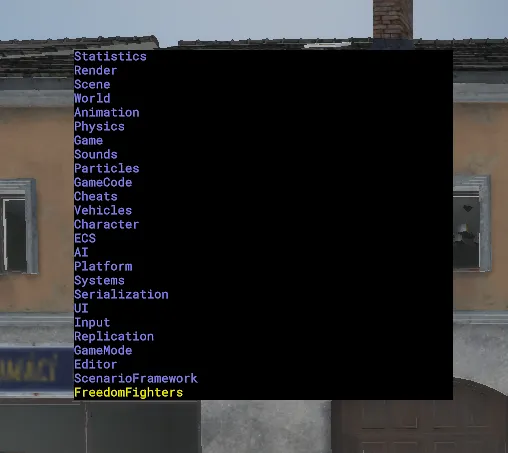
The intended mechanism for debugging tools in Arma Reforger is the diag menu, which is only available in Workbench.

The diag menu can be accessed by pressing Win + Alt. By default this conflicts with built-in Windows shortcuts, so it is suggested to use left Win + right Alt. The Freedom Fighters submenu will be visible at the end of the list.
Diag menu Diag menu

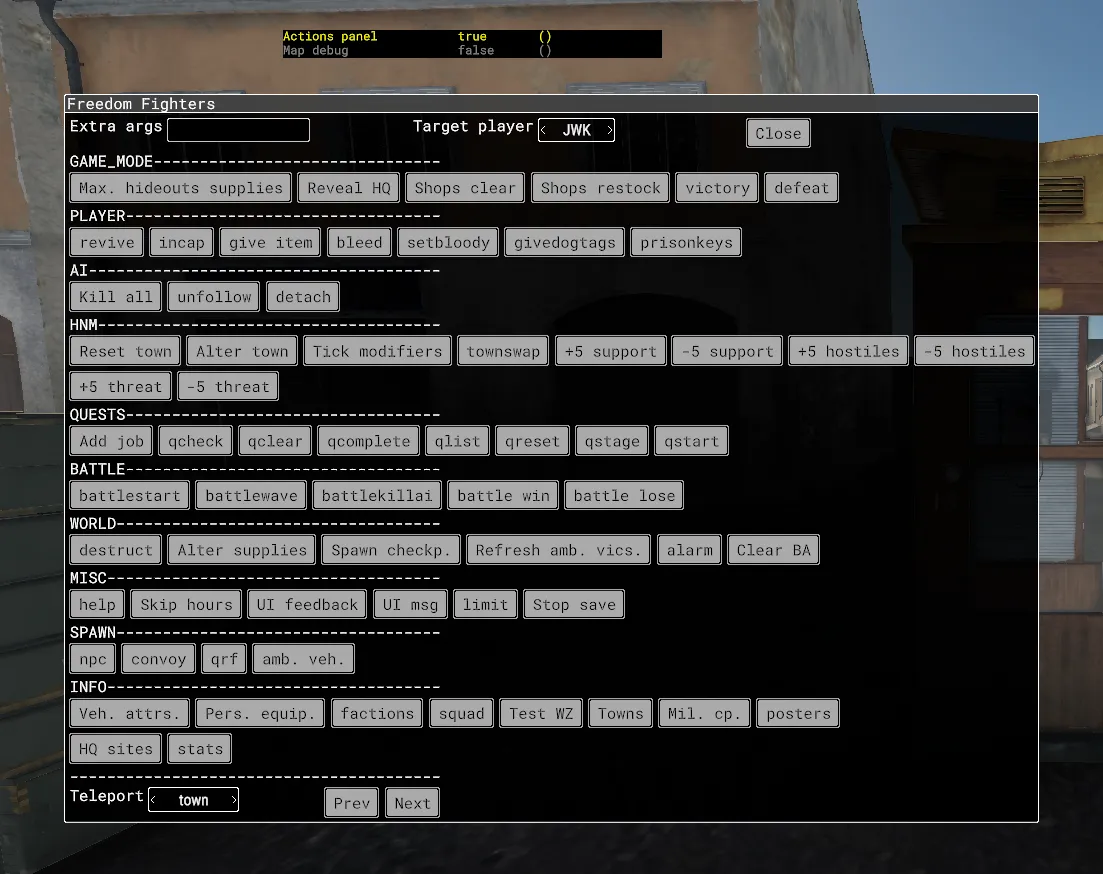
The submenu allows to enable the Actions panel, which is shown below. While the exact layout and available buttons in your version may differ, the panel consists of 3 elements:

  • the argument section: allows you to specify extra args used by specific actions, i.e. name of the quest to start, or number of hours to skip. The target player is relevant to actions that target a specific player - i.e. givedogtags, but also apply to many seemingly unrelated actions. For example, battlestart will search for the closest battle subject from the target player.
  • action selectors: buttons that execute various development actions upon clicking.
  • the teleport tool: teleports target player betweeen places of selected type.

Actions panel Actions panel

Chat commands

All of the actions in the actions panel are also accessible in regular game via chat commands, given that development mode is enabled in the server config file.

All commands have to be prefixed with #ff and most of them literally match the selectors in the Actions panel. You can type #ff help to list all available actions. This will print a detailed list in the log, as seen below.

Command help Command help

Because the ingame chat limits length of the server response and has no scrolling capability, the help action only returns a list of action names. You can use #ff help <action name> to access the description.

Command help Command help

Anything passed after the action name will be used as extra args, just like in the diag menu:

#ff givedogtags 5

By default, the player invoking the command is the target player. Different player can be targeted by passing a --p flag at the end. The flag will be ignored if the action is not relevant to a player.

The example below adds 5 dogtags to the player whose ID is 2:

#ff givedogtags 5 --p=2

Most action selectors in the actions panel literally match command names, but some are defined as aliases. For example, the +5 support is an alias for command #ff townalt sup 5. To see all aliases, refer to {84439CA0C982B7FE}Configs/Dev/DevUtils.conf.

Cheat sheet

#ff altsup 500 Add 500 supplies to nearest storage.
#ff stopsave Immediately stop persisting game state.
#ff resuphideouts Set all hideouts to 100% supplies.
#ff townreset Reset nearest town support and threat modifiers.
#ff battlestart Trigger battle for the nearest location.
#ff battleresolve win Immediately win current battle.
#ff battleresolve lose Immediately lose current battle.
#ff revealhq Reveal HQ location on the map.
#ff addjob [name] Assign new job using given job name, or skip the name to pick randomly.
#ff give [name] Insert item into player inventory. If name is skipped, the command will print available options. See DevAliases_Items.conf to add custom ones.

Dumping information

Following commands can be used to dump information to the log file, which is useful to verify issues like “is my custom item correctly assigned to the enemy faction”.

#ff vehattr Dump all vehicle attributes to log.
#ff factions Dump configurations of factions used by current campaign.