Data panels
Data panels provide insight into current state of FF configuration. Because a lot of configuration (especially for custom content) can be merged from different configuration files and sources, it’s often hard to tell what is the final outcome by simply looking at the raw config files. Data panels are accessible from the diag menu as shown below:
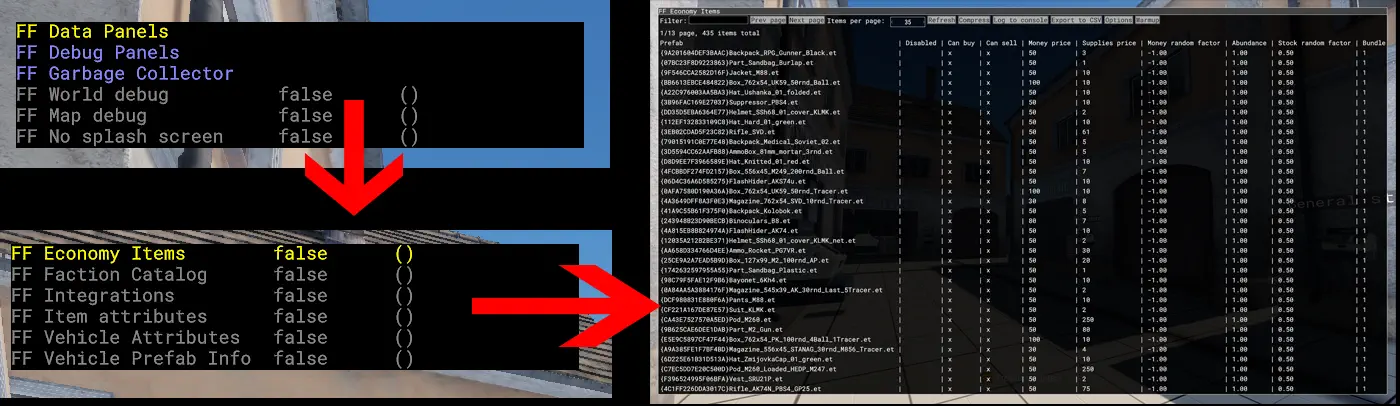
Data panels are organized as tables, which may contain hundreds of rows and several columns. Because Enfusion does not support scrolling or dynamic arrangement of content in these panels, FF has its own searching and scrolling functionalities built in.
Note
For optimization, some types of data in FF are not loaded until they are needed (this is called lazy loading). For that reason some panels may show up as empty. In that case you may use a Warmup button that will force-load the relevant data.
Sometimes it’s also required to use the Refresh button, in case the data shown is dynamic and can change during the gameplay.
In any data panel click on the Options button (green) to toggle a section that exposes additonal settings. If the panel exceeds your screen’s width, you can hide unwanted columns. Depending on what you’re doing, you can also customize behavior of the filter field.

You can use Log to console button to dump current view contents into the console, which is useful if you want to copy-paste something. You can also use Export to CSV to export the data into an external tool (for example some spreadsheet software).
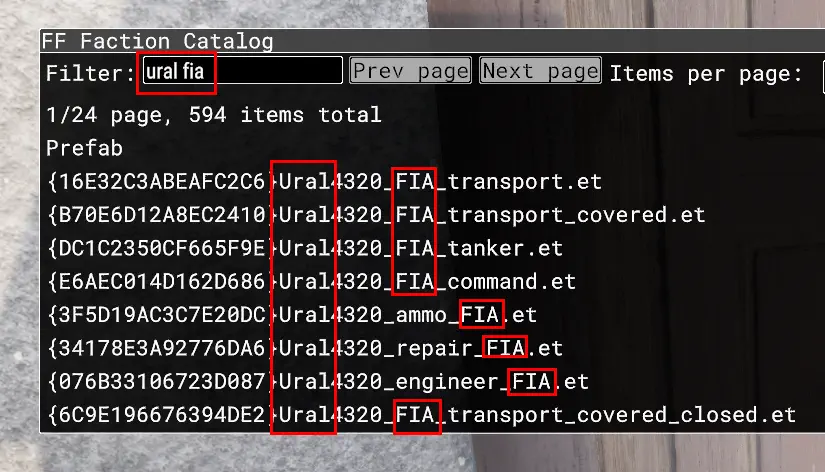
The filter field behaves in the same way as in Enfusion Resource Browser, which means that spaces separate substrings that are searched for in target columns. Example:
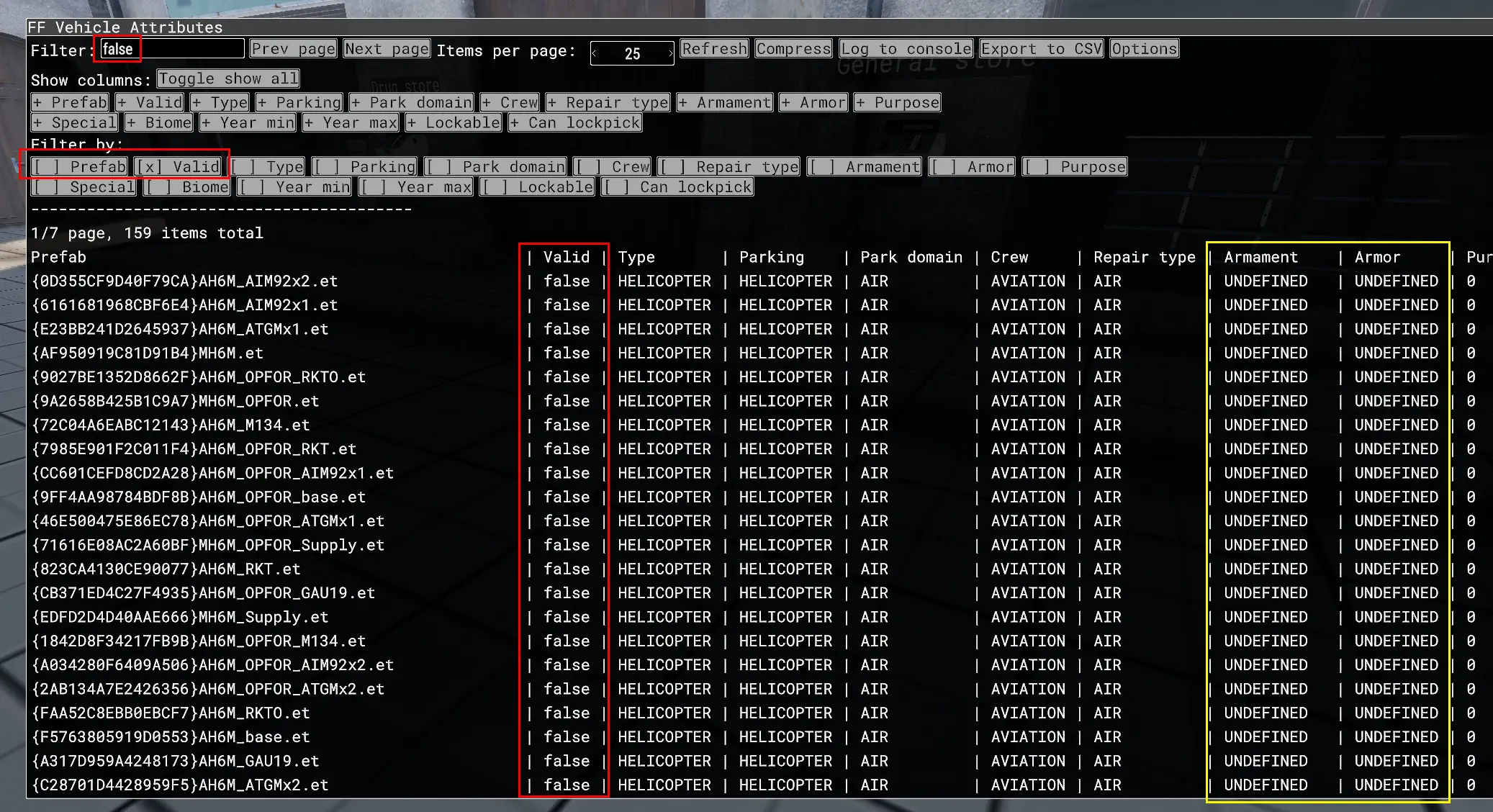
Filtering against custom columns is very powerful. For example, you can search for all vehicles that have missing attributes and easily inspect what’s wrong:
- open
FF Vehicle Attributespanel - type
falseinto the filter field - disable filtering by
Prefaband enable it for theValidcolumn
The view will now display all prefabs that are added to entity catalogs of used factions, but have incomplete vehicle attributes. You can inspect remaining columns to easily see which attributes are missing specifically (in this case marked by a yellow box). You can now log the table into the console and copy+paste listed prefab GUIDs in order to locate them in the Resource Browser and assign the attributes in an integration.
Similar technique can be used with item attributes or faction assignments in respective data panels.