Scenarios
Overview
FF is designed to allow for a very quick start with setting up a scenario and then expanding it as you go. The minimal setup requires only 4 entities and can be done within 10 minutes. See minimal setup for instructions.
World requirements
FF has no hard requirements regarding the world or terrain. It is best played and fully utilized on medium to large maps (25 km2 and up). There is no lower limit, but base game Arland is a good reference for optimal minimum size (roughly 2.5 x 2.5 km of landmass). There is no upper limit as well - other than server’s and players’ hardware. In principle, FF is optimized to handle any terrain within engine limits.
Due to gameplay reliance on vehicles, it is suggested to use worlds that have a well-developed asphalt road network, connecting at least all major locations (towns, bases and factories).
General tips
When creating a scenario it is very tempting to add more mods or alter FF to be better - after all, Enfusion allows to modify virtually anything for a reason, right? However, there is a design proverb saying that less is more.
If you’re creating a FF scenario on a new terrain, it’s best to stick to the vanilla content and treat it like a port. Do not change any FF functionalities, add new mods or include other dependencies than just FF. If you want to create a more tailored experience, separate that to another addon. A common pattern is to name such version as Plus or Extended. For example:
- FF Arland -> depends on Freedom Fighters, introduces the basic FF experience to Arland
- FF Arland Plus -> depends on FF Arland and multiple other mods, introduces fishing, modern factions, new shop types and balance adjustments
This brings the best of two worlds, as players can either choose your expanded and balanced version, or use the basic one with their own, established modlists. As your expanded version itself depends on the basic one, you don’t have to duplicate any work.
JWK Editor Utils
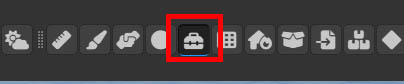
This guide will reference JWK Editor Utils, which is a World Editor tool identified by a toolbox icon, as seen below.